
How do I complete Recheck verification for Sunrun?
Starting 2/3/26, Sunrun reps who have not connected their Recheck account to Sunrun will lose access to their Sunrun sales tools.
Reps who have been deactivated will see the below messages in the One App platform:
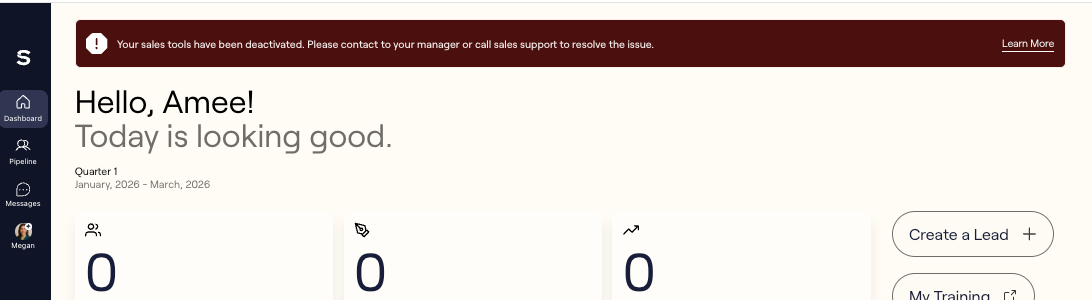
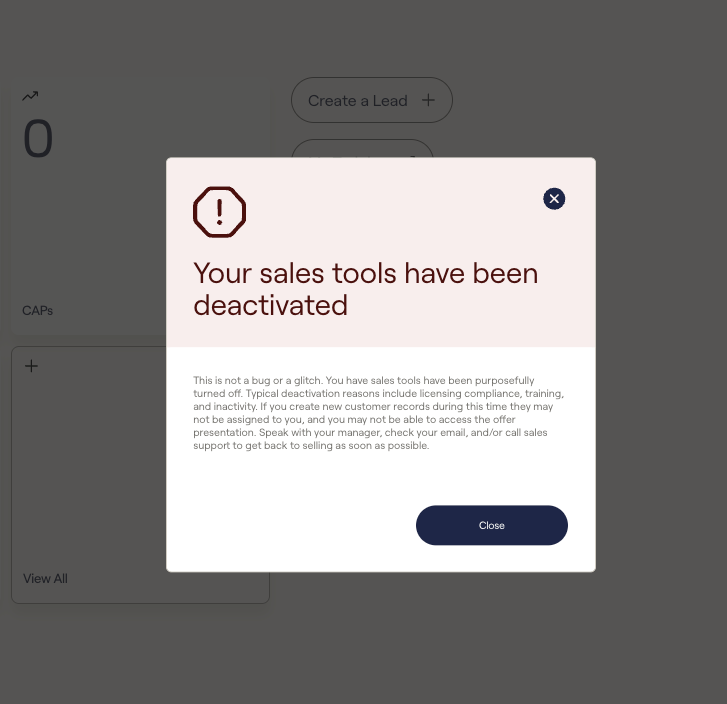
To reactivate your access:
Follow the step by step instructions (in the next section of this article) to connect your Recheck account to Sunrun.
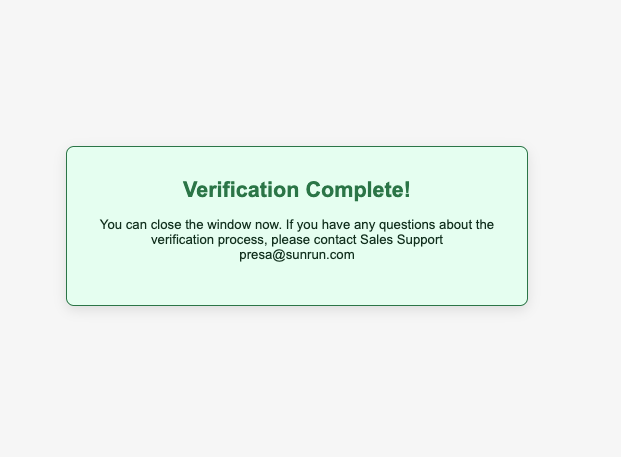
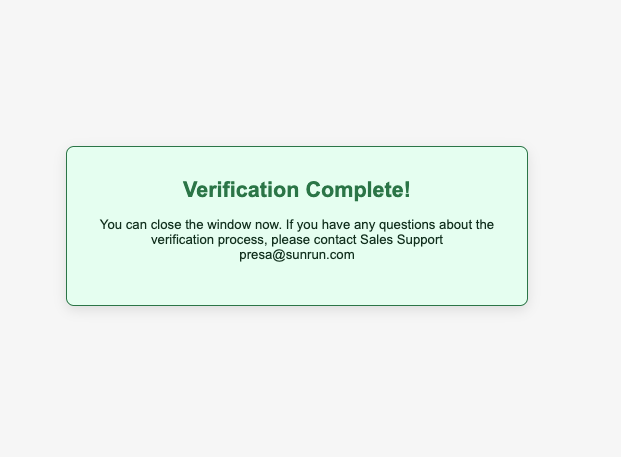
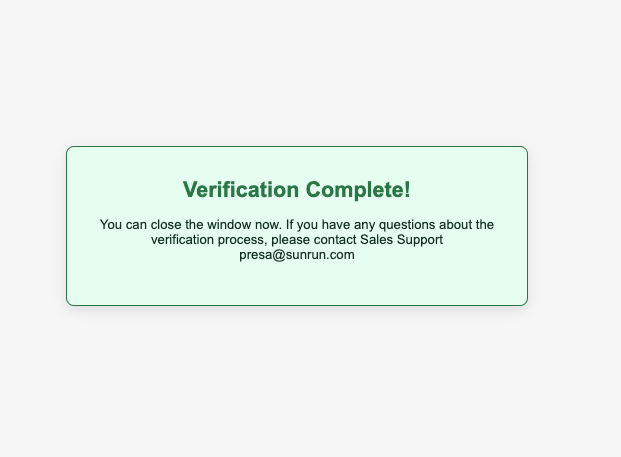
Complete all steps until you see the "Verification Complete!" confirmation message (below):
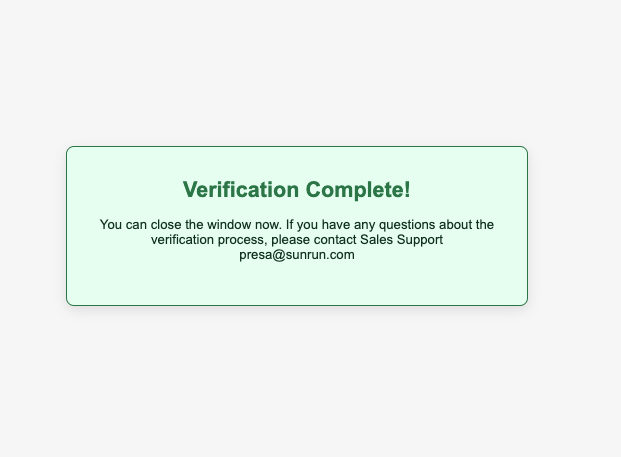
Once you have successfully connected your Recheck account, your sales tool access should be reactivated within 24 hours.
If you connected your Recheck account more than 24 hours ago and are still deactivated, please reach out directly to Sunrun support for help:
Email Support: preSRA@sunrun.com
Phone Support: 888-840-7180
Text Support: 385-317-0193
Below are step-by-step instructions for connecting your Recheck account to Sunrun:
From the Sunrun Partner Portal:
Log into the Sunrun Partner Portal here.
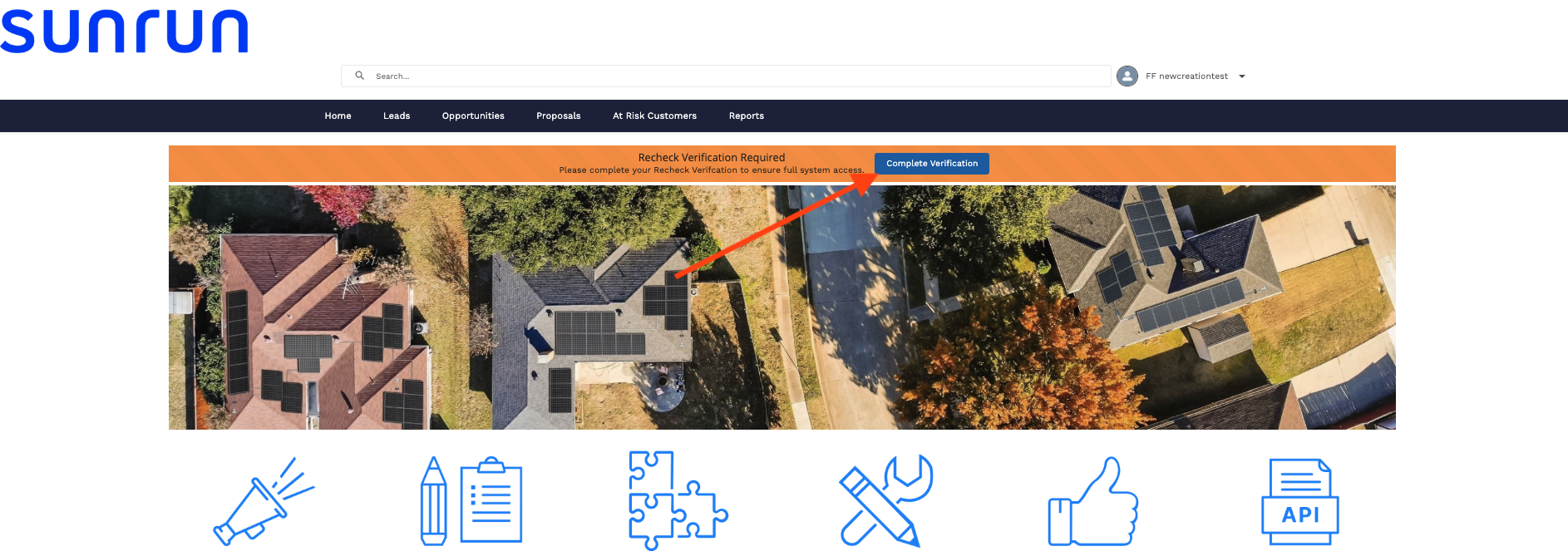
Once logged in, click the blue “Complete Verification” button in the orange banner (see below).
Follow the prompts to create / connect your Recheck account.
If you have never completed Recheck verification, follow the verification steps. The process takes ~90 seconds and requires a government ID and selfie. Once done, click 'Continue' on the screen showing your name and Recheck ID (example below).
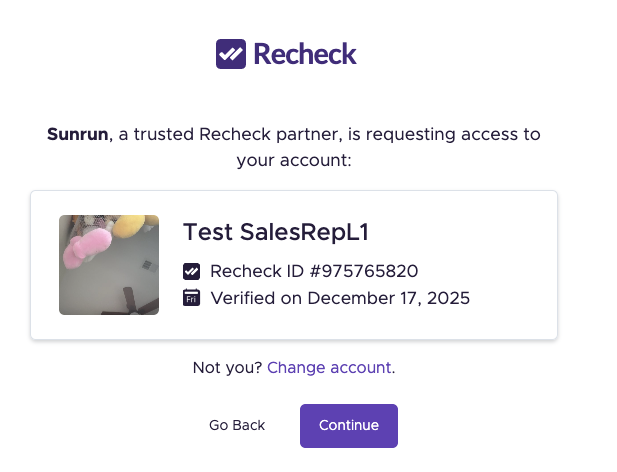
If you've previously completed Recheck verification (for another financing company or installer), you still need to link your Recheck account to Sunrun. You can do this by clicking the “Complete Verification” button, logging into your existing Recheck account (not repeating the full ID verification process), following the prompts to take a selfie, and clicking 'Continue' on the screen showing your name and Recheck ID (example above).
When prompted by Salesforce, click 'Link Account' (see below)
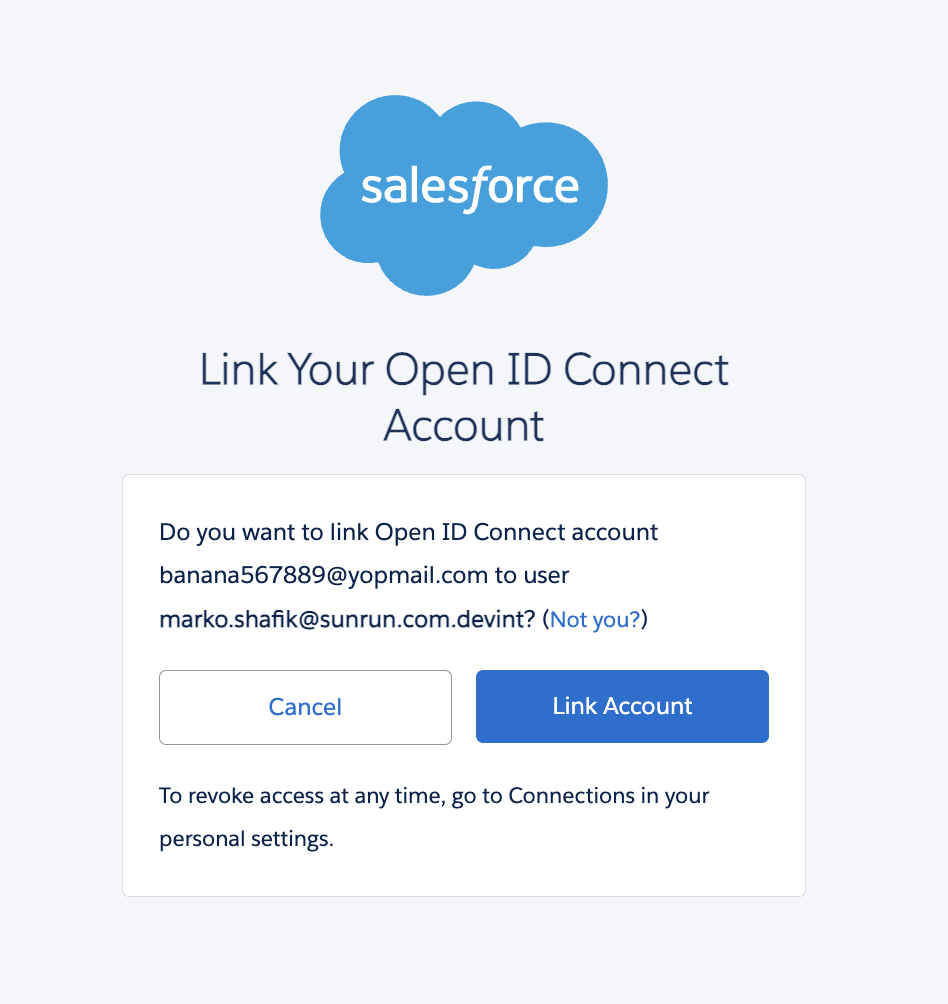
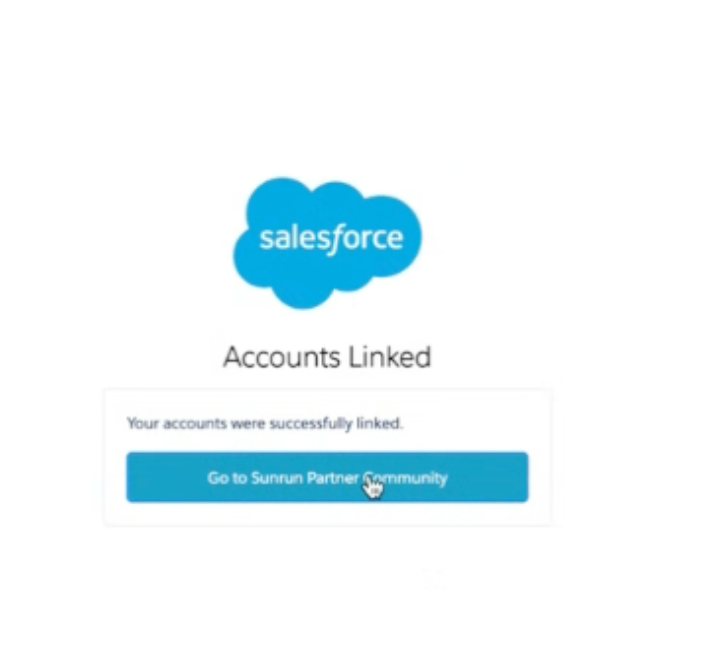
IMPORTANT: On the next screen, make sure to click “Go to Sunrun Partner Community” - if you do not click this button, your account connection will not be saved and you will need to complete these steps again.
Once you see the “Verification Complete!” message below, you are DONE. Your Recheck account has successfully been connected to Sunrun.
From the Sunrun ONE App:
Log into your Sunrun ONE account here.
From your Dashboard, click the “Recheck” button (see below).
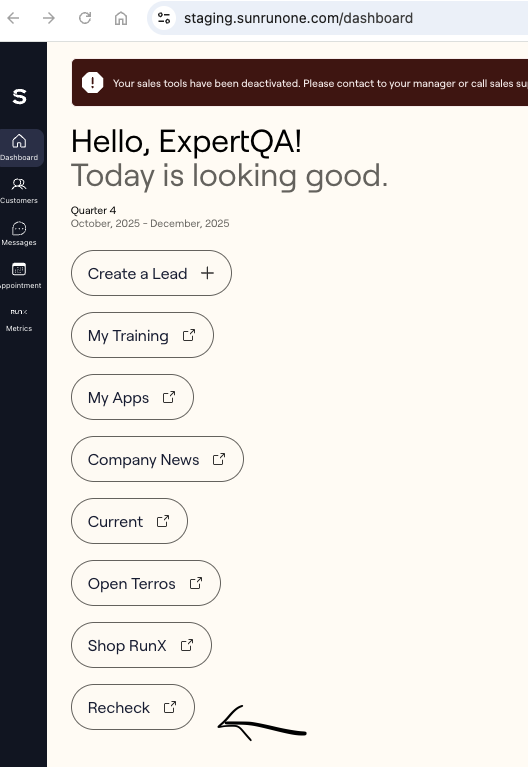
Follow the prompts to create / connect your Recheck account.
If you have never completed Recheck verification, follow the verification steps. The process takes ~90 seconds and requires a government ID and selfie. Once done, click 'Continue' on the screen showing your name and Recheck ID (see below).
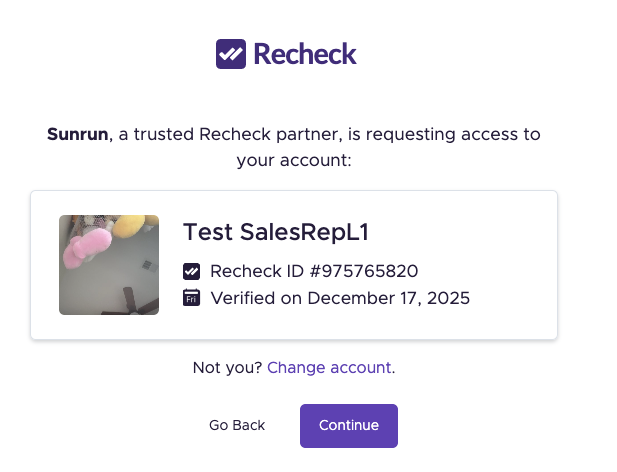
If you've previously completed Recheck verification (for another financing company or installer), you still need to link your Recheck account to Sunrun. You can do this by clicking the “Complete Verification” button, logging into your existing Recheck account (not repeating the full ID verification process), following the prompts to take a selfie, and clicking 'Continue' on the screen showing your name and Recheck ID (see above).
When prompted by Salesforce, click 'Link Account' (see below)
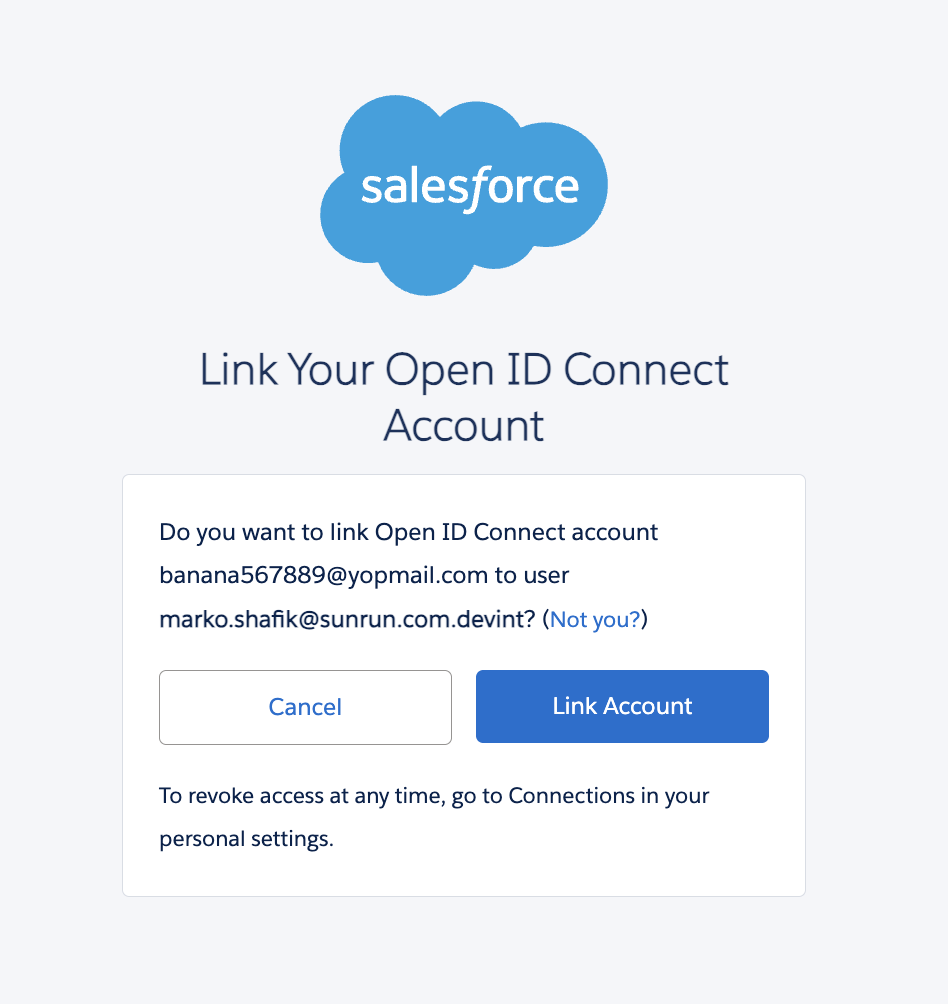
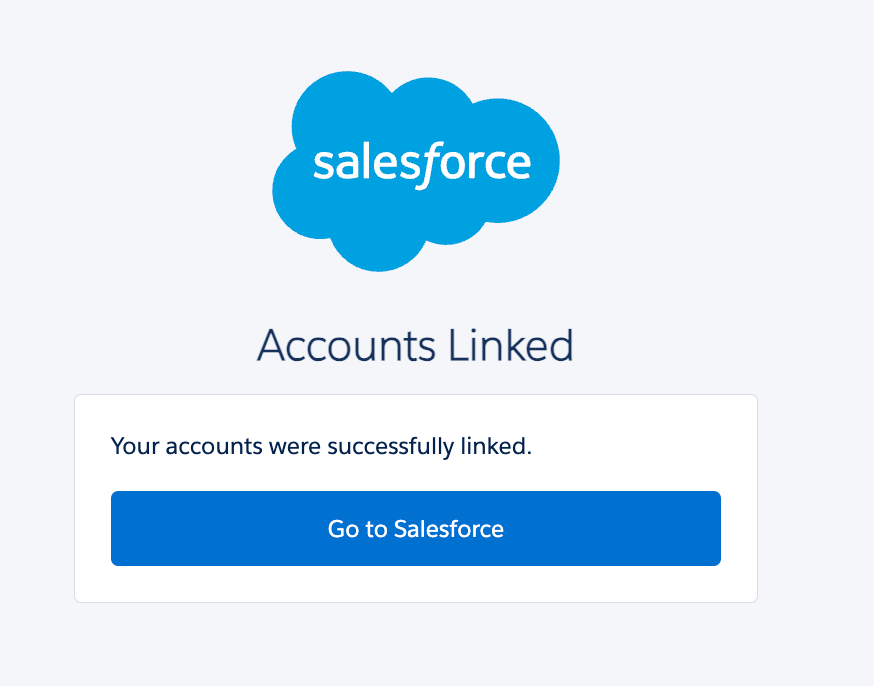
IMPORTANT: On the next screen, make sure to click “Go to Salesforce” - if you do not click this button, your account connection will not be saved and you will need to complete these steps again.
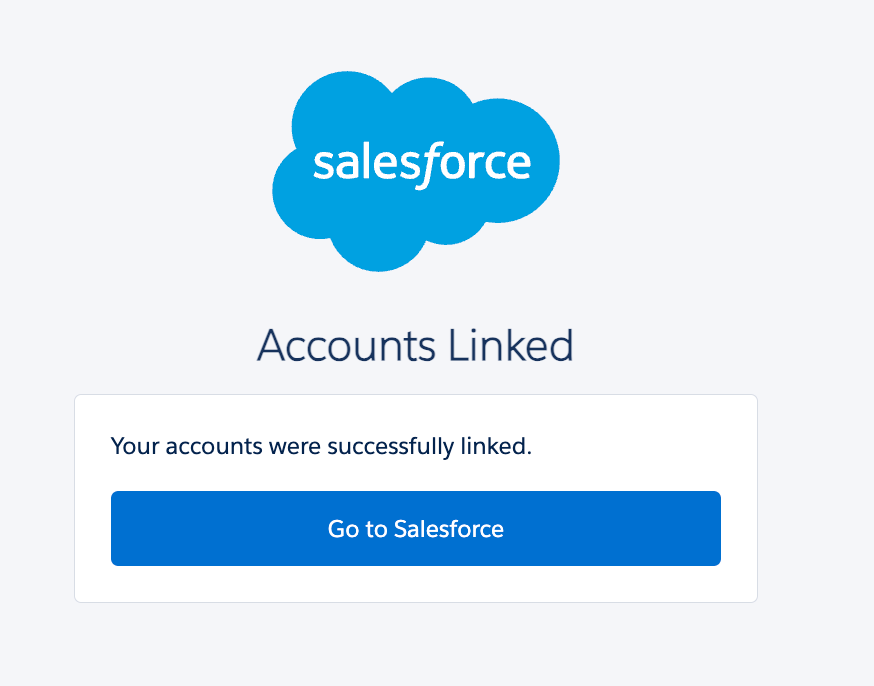
Once you see the “Verification Complete!” message below, you are DONE. Your Recheck account has successfully been connected to Sunrun.
In your Salesforce Account:
Click the dropdown arrow 🔽 in the menu on your contact page (see below).
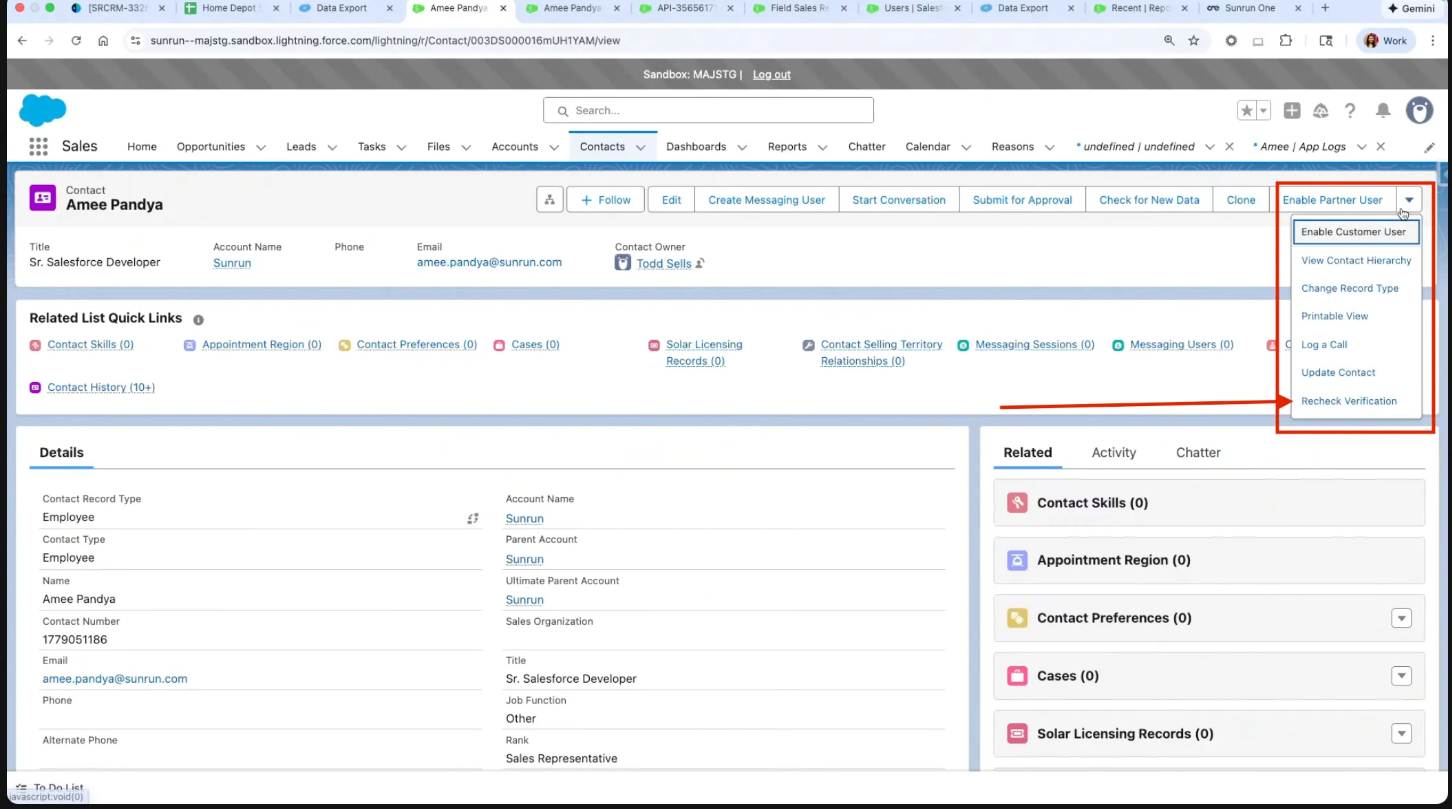
Click the “Recheck Verification” link from the dropdown options (see above).
Follow the prompts to create or connect your Recheck account:
If you have never completed Recheck verification, follow the verification steps. The process takes ~90 seconds and requires a government ID and selfie. Once done, click 'Continue' on the screen showing your name and Recheck ID (see below).
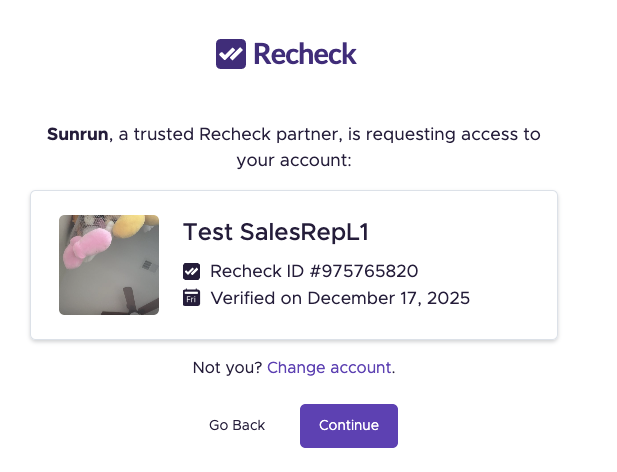
If you've previously completed Recheck verification (for another financing company or installer), you still need to link your Recheck account to Sunrun. You can do this by clicking the “Complete Verification” button, logging into your existing Recheck account (not repeating the full ID verification process), following the prompts to take a selfie, and clicking 'Continue' on the screen showing your name and Recheck ID (see above).
When prompted by Salesforce, click 'Link Account' (see below)
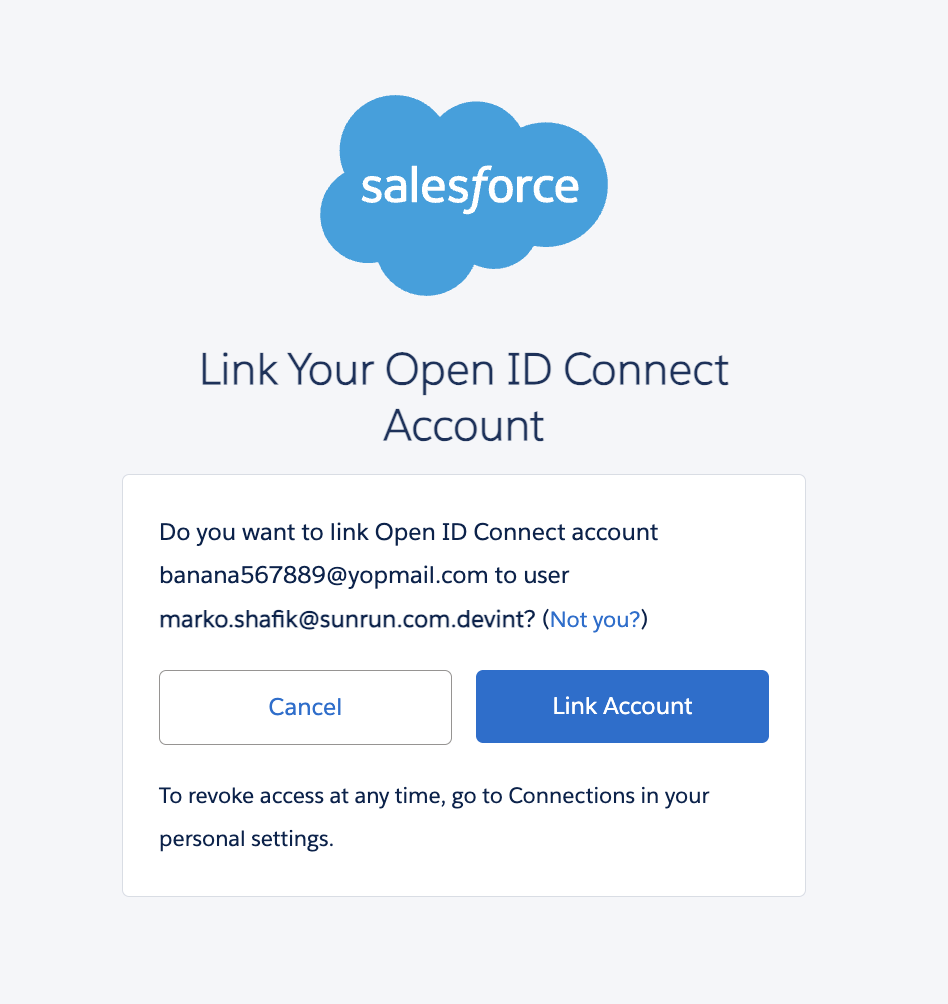
IMPORTANT: On the next screen, make sure to click “Go to Salesforce” - if you do not click this button, your account connection will not be saved and you will need to complete these steps again.
Once you see the “Verification Complete!” message below, you are DONE. Your Recheck account has successfully been connected to Sunrun.
How can I confirm if I’ve successfully connected my Recheck account to Sunrun?
Follow the steps below to confirm that you’ve successfully connected your account to Sunrun:
Make sure you are logged into your Recheck account.
From the Account dropdown in the top right corner of your Recheck profile, navigate to your Account Settings.
Scroll down to the Connections section of your profile to see all lenders to which you’ve successfully connected your account (example below). If you have successfully connected your account, Sunrun should appear on your list of Connections.
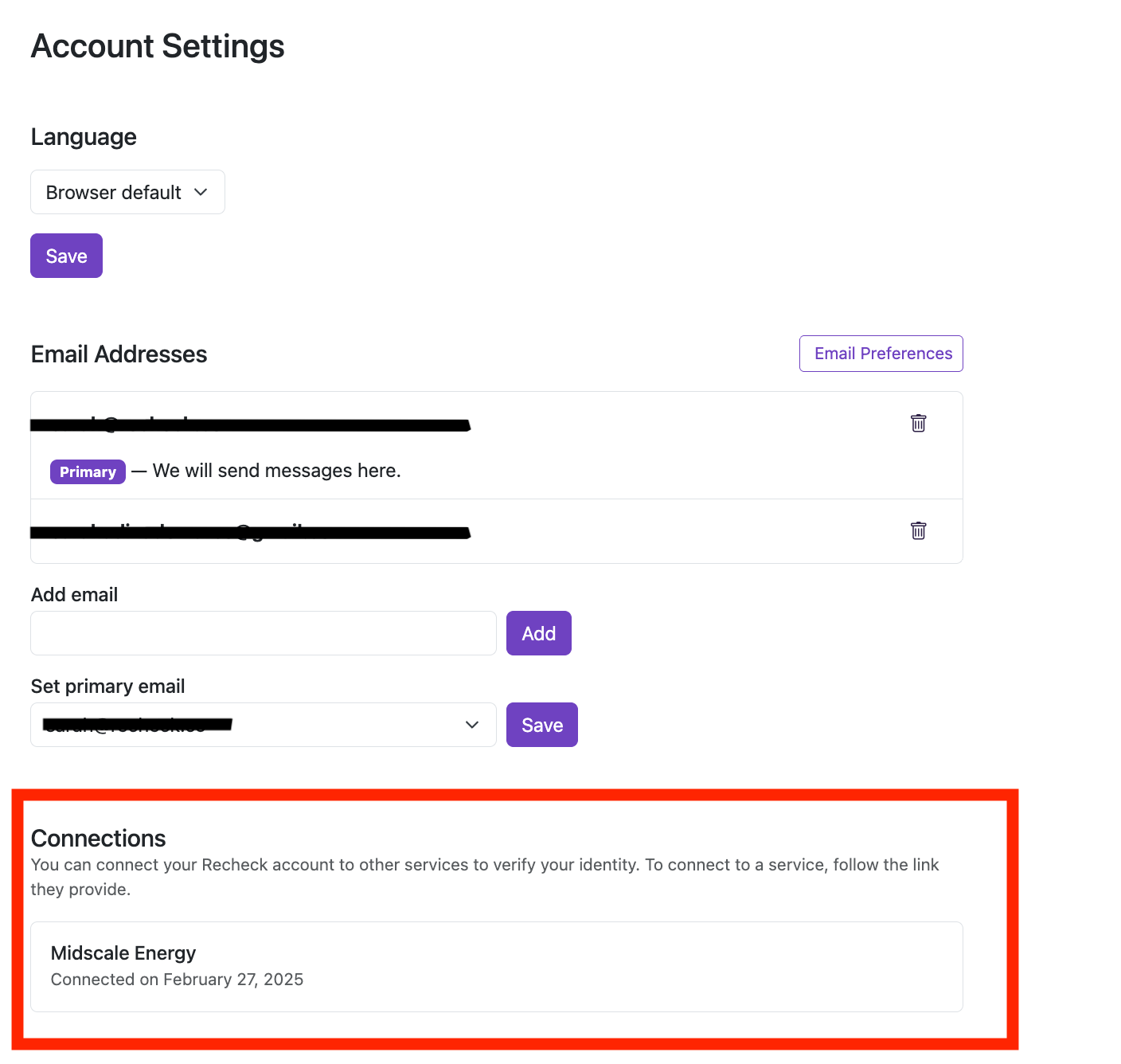
Note: If you do not see Sunrun listed under Connections, please follow the instructions at the beginning of this article to connect your Recheck account. Important: Make sure to complete all steps until you see the green “Verification Complete!” message. Once you see this confirmation message, you are all set.
If you're continuing to experience issues after following these steps, reach out to support@recheck.co for assistance.